Google Home
- 4.0
- Rating
- 1.00B
- Installs
- Free
- Price

 Analysis by App-foxy
Google Home is the kind of lifestyle app that seems simple until you try to connect several devices, change a household routine, or recover from a network problem. I spent time looking at it from that practical angle, and my impression is clear: it is most useful when your home already includes compatible Nest, Chromecast, or Google Home hardware. Without those devices, there is not much reason to keep it installed.
What I like is that it gives those products a shared place to manage them instead of making me jump between unrelated controls. What I do not like is that the app can make a problem feel mysterious when the real cause is the Wi-Fi network, a device that has lost power, or a phone that is connected somewhere else. Google Home is a control center, not a cure for every smart-home connection problem.
Where the real friction begins
The app comes from Google LLC and sits in the lifestyle category, but its everyday value depends heavily on the equipment around it. It is free to download, with optional in-app purchases listed from a few cents to nearly a thousand dollars per item. Those purchases are not the main reason most people open the app; the important point is that the app itself is the starting place for compatible hardware rather than a standalone entertainment or productivity tool.
In-Depth Coverage of Google Home
My first practical observation is that setup problems often happen before the app has a chance to do anything useful. A phone may be connected to mobile data while the home device is waiting for a local wireless connection. A speaker or display may still be linked to an old household arrangement. A Chromecast may be powered through a television that is switched off, making it look unavailable. These are small details, but they explain many of the “nothing happens” moments people blame on the app.
The large user base suggests that Google Home works for many ordinary households. It has passed a billion installs and holds an average rating of 4.1 from roughly 3.6 million ratings. I would not read those figures as proof that every setup is smooth. A smart-home app is judged by the weakest part of the chain: the phone, the router, the account, the device, and the service all need to cooperate.
Another point that can catch people out is the difference between seeing a device and controlling it. A device may appear in the home but fail to respond. That usually means the initial organization is still present while the live connection is not. Removing and adding everything immediately can make the situation worse, especially if several household members rely on the same arrangement.
The first checks I would make
Before changing settings, I would check whether the device is powered and showing its normal signs of activity. For a Chromecast, that means confirming the television input and power connection rather than assuming the streaming accessory is awake. For a Google Home or Nest product, I would first look at the hardware itself. If it has been moved, reset, or placed somewhere with a weak wireless signal, the app may only be reporting the consequence.
I would also confirm that the phone is using the same home network intended for the setup. Guest networks are a common source of confusion because they can isolate devices from one another. A phone can browse the internet perfectly while still being unable to discover a speaker or display on a different network segment.
Location matters in a practical sense too. If the phone is being used in another room, or if the router has several access points, discovery can take longer or fail intermittently. I would move close to the device during setup, keep the app open, and avoid switching between multiple networks while the process is running.
There is also a useful distinction between a new installation and a device that was already configured. If the product belonged to another home or another Google account, the correct solution may involve the previous arrangement rather than repeated attempts to add it as new. I would check the account shown in the app before resetting hardware. A reset can erase a working configuration without fixing the underlying account mismatch.
For families, I would decide early who should manage the home. Adding several people casually can create uncertainty about which account owns the setup and who is expected to change device settings. Keeping the main household configuration under one clearly identified account makes later troubleshooting much easier.
A calmer setup workflow
My preferred setup order is deliberately boring. I start with the phone, make sure it is connected to the intended wireless network, open Google Home, and then add one device at a time. I wait until that device is visible and responsive before moving to the next. Trying to configure a television, speaker, and display together creates too many possible failure points.
When the app asks for a home or room, I use names that describe the physical location rather than a vague label. “Living room” is more useful than “downstairs,” especially if the device is later moved. Clear naming also helps when several similar products are present. I would avoid decorative names that are amusing at first but difficult to recognize when the household grows.
One of the less obvious benefits of taking this slowly is that it creates a reference point. If the first device works and the second does not, I know the phone and basic network path are probably functioning. If none of them work, I stop changing individual device settings and inspect the network or account instead.
When a setup screen appears stuck, I would give the process a moment, then close and reopen the app rather than repeatedly tapping the same button. I would also restart the phone and, if appropriate, restart the router and the physical device. These are simple steps, but they are safer than deleting a home or performing a factory reset without knowing what will be lost.
You May Also Like

 Blood Strike: 2.5 Anniversary
Blood Strike’s Loadouts Turn Every Drop Into a Tactical Gamble
A close look at Blood Strike’s custom loadouts: how fast access to signature weapons reshapes its battle royale rhythm, rewards preparation, and narrows the gap between fights.

 Pandora - Music & Podcasts
Pandora’s Music Is Easy to Start, but Harder to Recover
Pandora’s strength is its low-effort path from a seed to a station. Its weak spot is how much confidence it asks you to place in connection, setup, and quiet recovery.

 8 Ball Pool
8 Ball Pool Is Built on Rivalries, Rematches, and Routine
A close look at the rivalries, rematches, shared routines, and unanswered safety questions that turn a quick pool match into a persistent mobile community.

 Samsung Music
Samsung Music’s Quiet Strength Is Playing What You Already Own
Its reach comes less from spectacle than from dependable access to a personal library. That simplicity is both the app’s strongest retention engine and its ceiling.

 AccuWeather: Weather Radar
AccuWeather Review: A Quick, Clear Forecast for Everyday Decisions
For everyday plans, the best forecast is the one you can understand quickly. AccuWeather makes rain timing, radar, and local conditions easy to act on, with a few trade-offs.

 Hill Climb Racing
Why Hill Climb Racing Still Turns Crashes Into One More Run
A tiny car, a bumpy hill and one more upgrade: Hill Climb Racing keeps resurfacing because its simple chaos makes every near-miss feel personal.
More From Our News Desk



Keeping the app and the phone’s operating system current is sensible, but I would not treat updating as the answer to every issue. An update can help with compatibility, yet it cannot restore power to a disconnected device or repair a wireless dead spot. The useful approach is to change one thing at a time so the result remains understandable.
Recovering a broken daily workflow
The most realistic scenario is a morning routine in which I want to cast something to the television or use a Google Home device in the kitchen. If the device worked yesterday but is missing today, I would not begin by rebuilding the home. I would first see whether the phone and device are on the same network, whether the television is on the right input, and whether another household member changed the router or device location.
If the device appears but does not respond, I would test a second command or control path inside the app. A single failed action may be temporary, while repeated failure across different controls points to a broader connection problem. I would also check whether the device is currently being used by another person, particularly when casting or changing playback on a shared television.
For a home with several rooms, I find it helpful to troubleshoot by location. If the living-room device works and the bedroom device does not, the problem may be local to that room or product. If every device disappears at once, I would focus on the router, internet connection, or account session. This simple comparison is more informative than treating every missing device as a separate failure.
I would avoid removing a device just because it is offline. Re-adding it can create duplicate entries, confusing room assignments, or a need to repeat settings that were not actually broken. Reconnection is usually my first choice; removal and reset are last-resort steps when the device’s own state clearly requires them.
Another useful habit is to keep the household structure tidy. Old rooms, duplicate devices, and products that no longer exist make the app harder to read. I would clean those entries only after confirming that the physical device is no longer needed. The goal is not to make the app look perfect; it is to make the next troubleshooting decision obvious.
When Google Home is not the cause
It is easy to blame the app because it is the screen where the failure appears. In practice, a router restart, an altered wireless password, a power interruption, or a device moved too far from the access point can produce the same symptom. If other phones, computers, or streaming products are also struggling, I would investigate the network before changing Google Home.
The physical arrangement matters more than many people expect. A speaker behind furniture, a television with unreliable power, or a router placed at the edge of the home can create intermittent behavior. The app may show a device as available one minute and unreachable the next. That inconsistency is frustrating, but it does not automatically indicate a software defect.
Account confusion is another outside-looking-inside problem. If one person set up the home and another person opens the app with a different account, the second person may see an incomplete arrangement or lack the expected control. I would verify the active account and household membership before resetting anything.
There are also expectations the app cannot meet. Google Home can organize and control compatible Nest, Chromecast, and Google Home devices, but it is not a universal controller for every brand in a house. If most of your equipment comes from unrelated manufacturers, their own apps may offer deeper controls. In that situation, Google Home may still have a role for the compatible products, but it will not necessarily become the single interface you hoped for.
Privacy-conscious users may also prefer a smaller setup. A person who owns one television and rarely casts may find the app unnecessary compared with using the television’s own controls. Likewise, someone who dislikes troubleshooting wireless devices should think carefully before expanding into a larger connected-home arrangement. The more products involved, the more valuable centralized control becomes, but the more ways a network problem can affect the experience.
What the app does well in regular use
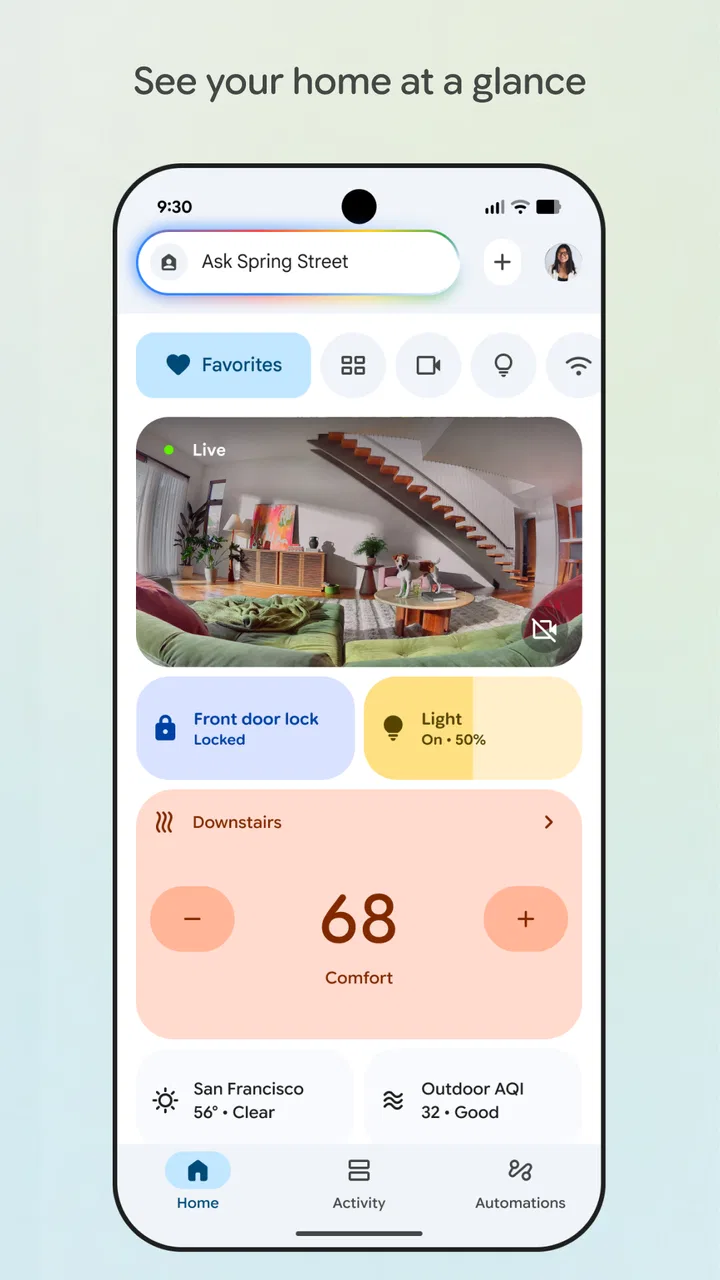
Once the devices are stable, the strongest part of Google Home is the reduction of small daily steps. I can think about the room and the device instead of remembering which manufacturer’s application belongs to which product. That is especially useful for households where one person handles setup but everyone else needs straightforward access.
The app also gives a clearer overview than separate manufacturer apps when compatible products share the same home. Rooms become practical groupings rather than just labels, and device organization helps me understand what should be available in each part of the house. This is not a dramatic feature, but it becomes valuable when the number of devices grows.
Google Home is also approachable for people who do not want to learn a technical system. The basic path is recognizable: choose the home, find the room, select the device, and use the available control. That simplicity is a strength, although it can make advanced problems feel under-explained. Beginners benefit from the clean structure; experienced users may want more visibility into why discovery or control has failed.
Compared with using each product’s dedicated app, Google Home is better when convenience and shared access matter more than brand-specific depth. A manufacturer’s app may expose settings that Google Home does not present as prominently. I would therefore keep the original app available when I need detailed device management, while using Google Home for the common household controls.
Compared with relying only on voice commands, the app is more useful when I need to see the state of several devices, choose a specific room, or recover from a command that was misunderstood. Voice control is quick when it works, but the visual layout gives me confirmation. That makes the app a practical backup even for people who mainly interact with their devices by voice.
Who should use it, and who should skip it
I would recommend Google Home to someone who already owns compatible Nest, Chromecast, or Google Home products and wants one familiar place to organize them. It is particularly suitable for a shared household, a person adding devices room by room, or anyone who wants a visible alternative to voice-only control.
I would be more cautious if your home contains mostly products from other ecosystems. You may end up maintaining several apps while gaining only partial convenience from this one. I would also skip it if you do not own compatible hardware and have no plan to add any. The free price makes trying it easy, but free does not mean useful without something to manage.
The age rating is Everyone, which fits the straightforward household purpose. Google Home was released in July 2013, and its long presence helps explain why it is familiar to so many Android users. Still, longevity should not be confused with universal compatibility. The right question is whether your particular devices and home network fit the way the app expects to work.
On iOS, I would judge it by the same practical standard: whether it can reliably see and control the compatible hardware in the home. On Android, it naturally feels at home within Google’s wider device environment, but the basic decision remains the same. The platform matters less than the account, network, and products being connected.
My practical verdict
After using it as a household control point rather than treating it as a standalone app, I see Google Home as useful but dependent. The interface can simplify everyday control, organize compatible equipment, and give a family a shared view of what is installed. Its weak point is that setup and recovery often require more patience than the clean interface suggests.
My advice is to begin with one device, one account, and one clearly named room. Confirm that the device responds before expanding. When something fails, separate the possibilities: power, network, account, physical location, and only then the app. That order prevents unnecessary resets and keeps a small problem from becoming a complete rebuild.
The app is free and rated for Everyone, and its reach is reflected in more than a billion installs, but those broad figures should not decide the purchase of hardware for you. I would choose the ecosystem first and then use Google Home to make compatible products easier to live with. If your devices already fit that ecosystem, I think it is worth trying. If they do not, a dedicated manufacturer app may be the more honest and less frustrating choice.
My final view is favorable with a clear condition: Google Home earns its place when it reduces the number of separate controls in a real home. It is not magic, and it cannot hide weak Wi-Fi or unclear account ownership. But with sensible setup, tidy room organization, and a calm troubleshooting routine, it becomes a dependable everyday companion for compatible Google-connected devices.
FAQs for Google Home
01What devices are compatible with Google Home?
Google Home is compatible with a wide range of smart devices including lights, thermostats, security cameras, and more from various brands like Philips Hue, Nest, and Samsung SmartThings. It also works with both Android and iOS devices, allowing you to control your smart home ecosystem seamlessly through the app.
02How do I set up Google Home for the first time?
Setting up Google Home is straightforward. Download the Google Home app on your smartphone and ensure your device is connected to the same Wi-Fi network. Follow the in-app instructions to connect your Google Home device. Once connected, you can start customizing settings and adding compatible smart devices.
03Can Google Home integrate with other voice assistants?
Google Home primarily works with Google Assistant. While it does not natively integrate with other voice assistants like Alexa or Siri, you can use third-party services and smart hubs to create a more integrated system. However, this may require additional setup and configuration.
04Is Google Home secure and does it protect my privacy?
Google Home is designed with security in mind, offering features like voice match and the ability to review and delete your voice recordings. Google provides transparency about data usage and gives control over privacy settings, but users should regularly review these settings to ensure optimal privacy.
05What are the main limitations of Google Home?
While Google Home offers robust smart home integration, it does have limitations. It may not support every smart device, and some users might find the voice recognition to be less accurate in noisy environments. Additionally, it relies heavily on an internet connection, which can affect performance if the network is unstable.
Pros
- Easy integration with smart devices.
- User-friendly interface for setup.
- Voice control is highly responsive.
- Frequent updates enhance functionality.
- Supports multiple user accounts.
Cons
- Limited offline functionality.
- Privacy concerns with data collection.
- Occasional connectivity issues.
- Voice recognition can be inconsistent.
- Some features require subscriptions.

Google Home
Gallery